Introduction
As you might know, VSCode documentation is SUCKS (for those who are too lazy to read). So I made this article for myself and my readers (if there are any), on how to install VSCode easily.
Tutorial
First, you need to:
Select Your OS
Windows
-
Head to this link https://code.visualstudio.com/download.
-
Then, click the Windows 10/11 Download section.
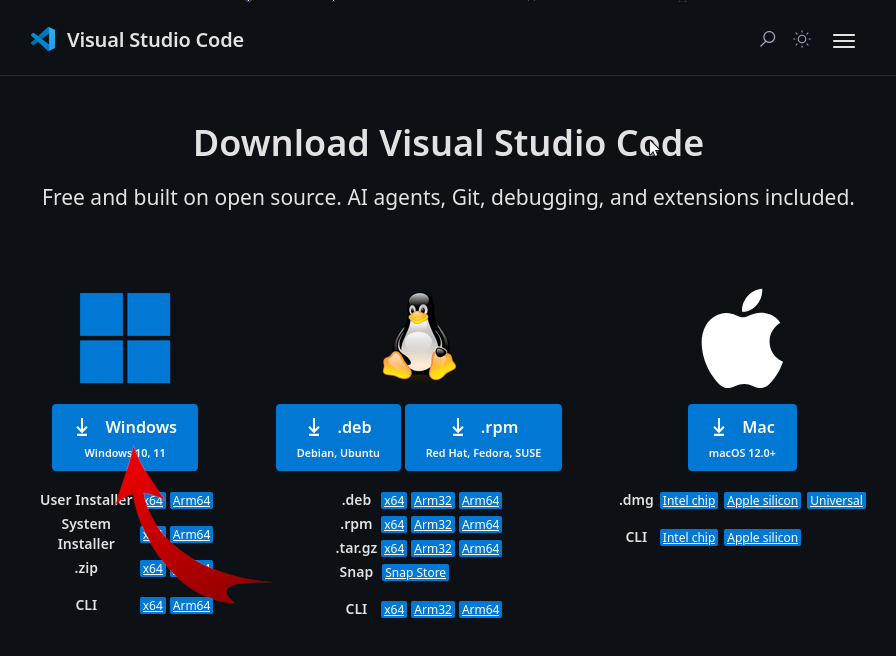
-
After that open the installer, then just click Next, Next, Next until done.
-
Launch from menu, then you’re done!
Linux
Tested on Debian 13 (Trixie)
1. Update your system
sudo apt update
sudo apt install -y wget gpg apt-transport-https
2. Import Microsoft’s GPG key
wget -qO- https://packages.microsoft.com/keys/microsoft.asc \
| gpg --dearmor \
| sudo tee /usr/share/keyrings/microsoft.gpg > /dev/null
3. Add the Visual Studio Code repository
echo "deb [arch=amd64 signed-by=/usr/share/keyrings/microsoft.gpg] https://packages.microsoft.com/repos/code stable main" | sudo tee /etc/apt/sources.list.d/vscode.list
4. Install VS Code
sudo apt update
sudo apt install code
And donee!
To launch, simply type in terminal:
code
or launch from your main menu.
Raspberry Pi
To install VSCode on latest Raspberry Pi OS, simply type:
sudo apt update && sudo apt install code
After that launch it from main menu.
Mac
Coming Soon
Conclusion
So, that’s how it is, thank you for reading this hastily put together article.